Visual Studio Code Setup
Table of Contents
V language support
The V VS Code Extension provides V language support for Visual Studio Code.

Features:
- Syntax Highlighting.
- Code Snippets for quick coding.
- Format code on file save as well as format manually (using v fmt).
- Linter (Workspace files only). moreHint: This extension will not add the V compiler! Information on how to install V compiler on your operating system.
Setup Extension
Install V VS Code Extension.
Visual Debugging
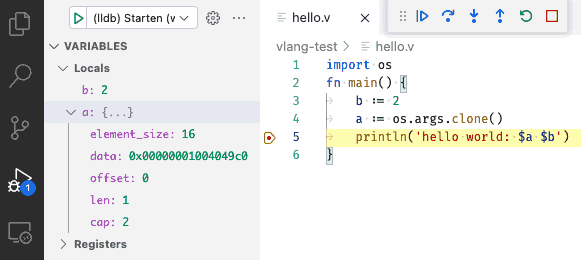
The C/C++ Extension for Visual Studio Code provides visual conditional debugging.
Features:
- Conditional breakpoints
- Function breakpoints
- Expression evaluation
- Change Values more Features & DocumentationHint: Not all types (e.g. Array) in V currently create the required DWARF information to show and edit the variable.
Setup Debugging
Step1: Configure the launch.json file
- Install the C/C++ Extension
- Open
RUN AND DEBUGpanel (Debug Icon in left panel). - Click on
Showall automatic debug configurations. - Select
Add config. - Select environment
C++ (GDB/LLDB). - Change the line
"program": "Enter the program name, e.g. \"${workspaceFolder}/a.out\"",to point to your compiled application e.g."program": "${workspaceFolder}/hello",or a more flexible one"program": "${fileDirname}/${fileBasenameNoExtension}",when you want to debug the current opened file.This will add a block to your.workspacefile, or create the file.vscode/launch.json:
Optional: use{ // Use IntelliSense to learn about possible attributes. // Hover to view descriptions of existing attributes. // For more information, visit: // https://go.microsoft.com/fwlink/?linkid=830387 "version": "0.2.0", "configurations": [ { "name": "(lldb) Start", "type": "cppdbg", "request": "launch", "program": "Enter the program name, e.g. \"${workspaceFolder}/a.out\"", "args": [], "stopAtEntry": false, "cwd": "${fileDirname}", "environment": [], "externalConsole": false, "MIMode": "lldb", "preLaunchTask": "build" } ] }"program": "${fileDirname}/${fileBasenameNoExtension}"to debug any current open source file with an existing binary with the same name but without any extension.
Step2: Configure the tasks.json file
Generally, you can manually compile the application with: v -b c -g hello.v -o hello,
or for short: v -g hello.v, and then call the debugger.
The -g option will add the needed debugging information.
You can find more debugging options in the docs.
VS Code provides a hook called preLaunchTask, which can be used to compile
the application automatically every time you call the debugger.
preLaunchTask launches
a task before the start of a debug session, set this attribute to the label of a task specified
in task.json (in the workspace's .vscode folder).
Or, this can be set to ${defaultBuildTask}, to use your default build task.
As explained, the "preLaunchTask": "build" needs to work with a .vscode/tasks.json
with a label named build.
{
    // See https://go.microsoft.com/fwlink/?LinkId=733558
    // for the documentation about the tasks.json format
    "version": "2.0.0",
    "tasks": [
        {
            "label": "build",
            "type": "shell",
            "command": "v",
            "args": [
                "-g",           // add more compiler options here if necessary
                "${relativeFile}"   // or modify it according to your requirements
            ],
            "group": "build",
            "presentation": {
                "reveal": "never"
            },
            "problemMatcher": {
                "owner": "v",
                "fileLocation": ["relative", "${workspaceFolder}"],
                "pattern": {
                    "regexp": "^(.*):(\\d+):(\\d+):\\s+(warning|error):\\s+(.*)$",
                    "file": 1,
                    "line": 2,
                    "column": 3,
                    "severity": 4,
                    "message": 5
                }
            }
        }
    ]
}
Usage
To allow your compiled application to be debugged. The application needs to include additional debugging information (DWARF).
- Open your source code and set the required break points
- Click on the Debug Icon in the left Icon panel and click
> (lldb) Start, or useF5to launch your application in debug mode.For all options look at the official C/C++ Extension documentation.